How to Make Coloring Pages from Photos with AI
By InkPages Editorial · August 27, 2026
Last weekend my nephew asked for “a coloring page of our dog.” A store book had a cartoon puppy he didn’t recognize. So I opened our coloring page maker, dropped in a photo of the actual dog, and twenty seconds later he had a black-and-white line drawing of his dog. That moment is why an AI generator beats a generic book: the page shows something the child already cares about.
Here is the exact workflow I use, what photos work, and how to print without wasting ink.
The same approach works for classroom handouts from a field-trip photo, party activities from a birthday snapshot, or a quiet evening activity for adults who want to color their own vacation memories.
What an AI generator actually does
A coloring-page generator is not a simple “find edges” filter. According to testing across several tools, the model runs four passes (kolorii.com):
- Analysis — it detects contrast regions and the outlines already in your photo.
- Extraction — it isolates the main lines from the background.
- Simplification — it drops noise and unnecessary detail so the page is actually colorable.
- Optimization — it adjusts line thickness for pencils or markers.
That fourth step is the difference between “edge soup” and a page a five-year-old can finish. A pure edge-detection filter keeps every edge, including shadows and JPEG artifacts.
Most generators offer a few line styles. Simple or Extra Bold keep lines thick and easy, which is ideal for younger kids whose crayon control is still developing. Cartoon adds a playful stylized look. Detailed keeps finer line work and is better for older kids or adults who want more intricacy. If the first style feels too busy or too plain, regenerate with the next option before you blame the photo.
Pick a photo that converts well
The generator does its best work with the right input. The same rule holds whether you use our tool or any other:
- One clear subject. A single pet, one person, or one object. The model knows what to outline.
- Even light and contrast. Bright, natural light gives clean edges. Harsh shadows confuse the lines.
- A plain background. A wall or floor keeps the page from getting cluttered.
- Enough resolution. A sharp photo gives the model more detail to work with.
Photos that struggle: very busy scenes with overlapping objects, dark or blurry shots, and tiny faces in a crowd. If your first result looks messy, crop closer, brighten the photo, or pick a bolder line style. Our photo-to-coloring-page tips guide goes deeper on fixing weak inputs.
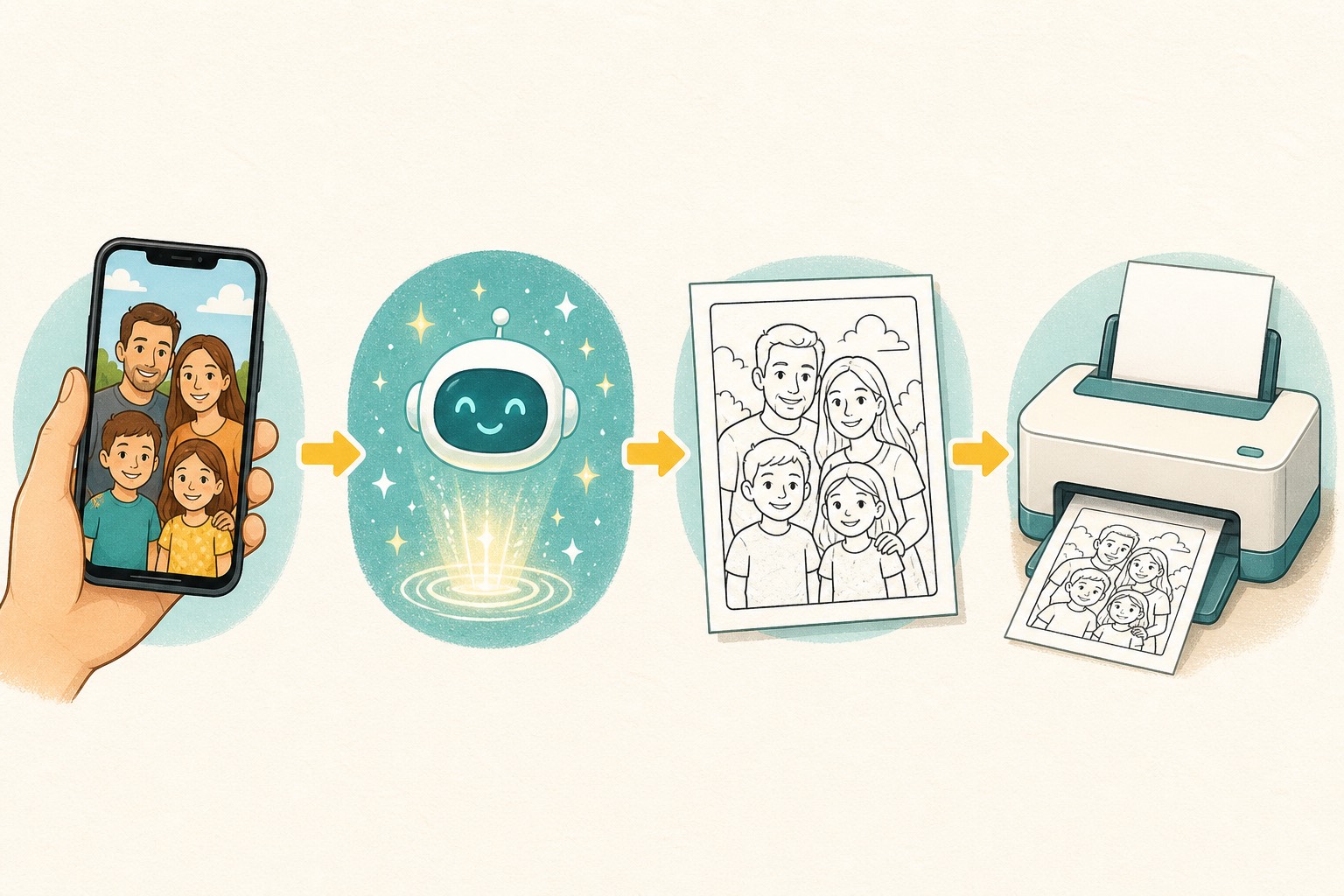
Step by step: from photo to printable page
The short version:
- Open the generator and upload. Drag in a JPG, PNG, or WEBP. Higher resolution means more detail.
- Choose a line style. Simple or Extra Bold for young kids; Cartoon for play; Detailed for older kids and adults.
- Preview and adjust. Most tools let you nudge detail level or line thickness. Try two styles and compare.
- Export and print. Save as PDF for correct sizing, or PNG if you want to edit further.
A full walkthrough of turning a set of photos into a bound gift book is in our photo coloring book gift guide.
AI generator vs doing it by hand
| Method | Time | Skill needed | Best for | Line quality |
|---|---|---|---|---|
| AI generator | 10–20 sec | None | Personalized pages from your own photos | Clean, purposeful lines; handles faces |
| Mobile sketch filter | 1–2 min | None | Quick phone-only workflow | Decent, but often needs manual cleanup |
| Photoshop / GIMP | 15–30 min | Moderate | Full manual control | Professional, if you know the steps |
| Hand tracing | 20+ min | Some | Total artistic control, no upload | Limited by your hand |
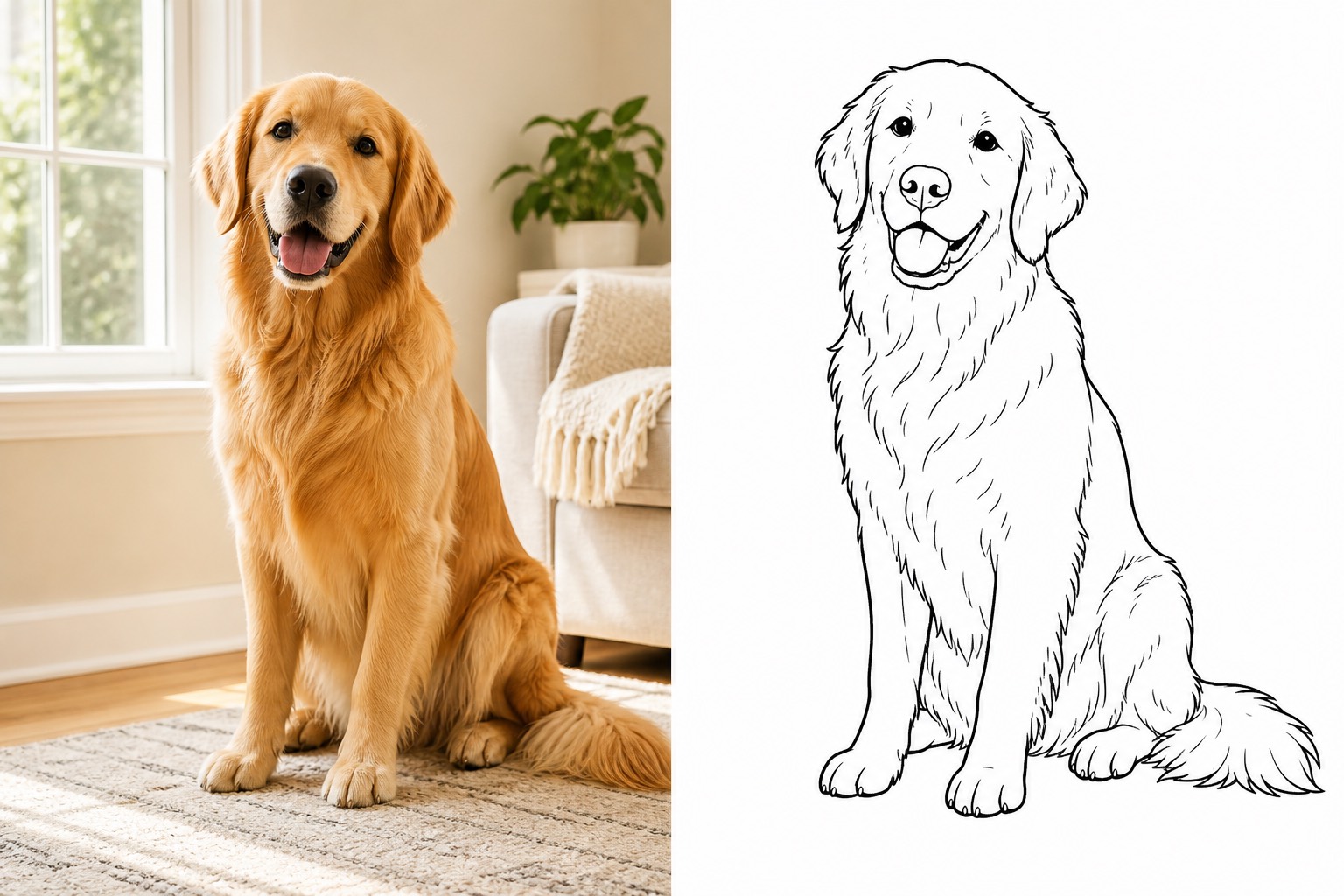
A basic edge-detection filter and a true AI generator are not the same thing. The filter keeps every edge, including noise. The AI model understands what a face or a tree is, so it keeps the lines that matter and drops the rest (copydraw.com). If you want to compare free tools side by side, see our free photo-to-coloring-page tools compared breakdown.
Common problems and quick fixes
Even with a good generator, the first result is not always perfect. These three issues come up most often, and each has a quick fix (phototolineart.com):
- Lines are too faint or broken. This usually means the original photo was low-contrast or underexposed. Increase the contrast in your photo before uploading, or switch to a bolder line style.
- There is too much detail or noise. Busy backgrounds, patterned clothing, or complex textures overload the page. Crop closer to the subject, or choose the Simple style so the generator drops more detail.
- Facial features look wrong or missing. Tiny faces, sunglasses, or uneven lighting are the usual culprits. Upload a closer portrait with the face well-lit and the person looking toward the camera.
If you fix the input and the output is still weak, the photo itself may be the wrong candidate. Move on to a clearer shot rather than fighting a poor source.
Printing without wasting ink
Once you have the line art:
- Aim for 300 DPI. That is the standard for sharp home and photo printing; below about 200 DPI the lines start to look soft (scribbloo.com).
- Use grayscale and draft mode to save ink on a standard A4 or US Letter page.
- Cardstock for markers. Thick paper stops bleed-through; standard paper is fine for crayons and pencils.
- Bind a few pages at a copy shop for a gift booklet — a custom coloring book of shared memories lands harder than a store card.
Why this is worth it for kids
Coloring a page of something they recognize is more engaging than a random cartoon. The National Endowment for the Arts points out that arts experiences teach children creativity, collaboration, and critical thinking — skills that carry into school and life (arts.gov). In its longitudinal research, students with arts access were about three times more likely to earn a bachelor’s degree than peers without it (NEA Arts Education infographic). A personalized coloring page is a small, low-cost entry into that kind of hands-on making.
Frequently asked questions
Can an AI generator turn any photo into a coloring page? It works best with a clear single subject, good light, and a simple background. Busy, dark, or blurry photos produce weak lines, so crop closer or pick a different shot.
Is the finished page mine to print and give as a gift? Use photos you own. If you convert someone else’s image, get their permission before printing or sharing it — copyright still applies to the source photo.
What paper and settings give the cleanest print? Export at 300 DPI, print on standard A4 or US Letter in grayscale, and use cardstock when coloring with markers so the ink does not bleed through.
How is an AI generator different from a basic edge-detection filter? A filter keeps every edge, including shadows and noise. An AI generator understands the content of the photo, so it keeps the lines that matter and removes the rest.
Ready to color?
Browse hundreds of free printable coloring pages.