Free Photo to Coloring Page Tools Compared
By InkPages Editorial · July 15, 2026
What You Need to Know
Turning a photo into a coloring page used to mean opening Photoshop, running a sketch filter, and spending an hour cleaning up grey smudges. Today a free photo to coloring page converter does the whole job — edge detection, shading removal, line cleanup — in about a minute, in a browser tab, with no Photoshop and no drawing skill. The catch is that “free” is not one thing: some tools stamp a watermark on the output, some cap how many pages you can download, and a few require an account before you ever see a result.
This guide compares the best free photo to coloring page converters that actually deliver a printable page, and explains the three things most “top 10 list” posts skip — what the watermark fine print really says, which source photos convert cleanly, and what print resolution the numbers demand. If you want to skip the comparison and start converting, InkPages turns your own photo into a coloring page for free, then browse hundreds of ready-to-print sheets.
How a Photo Becomes a Coloring Page
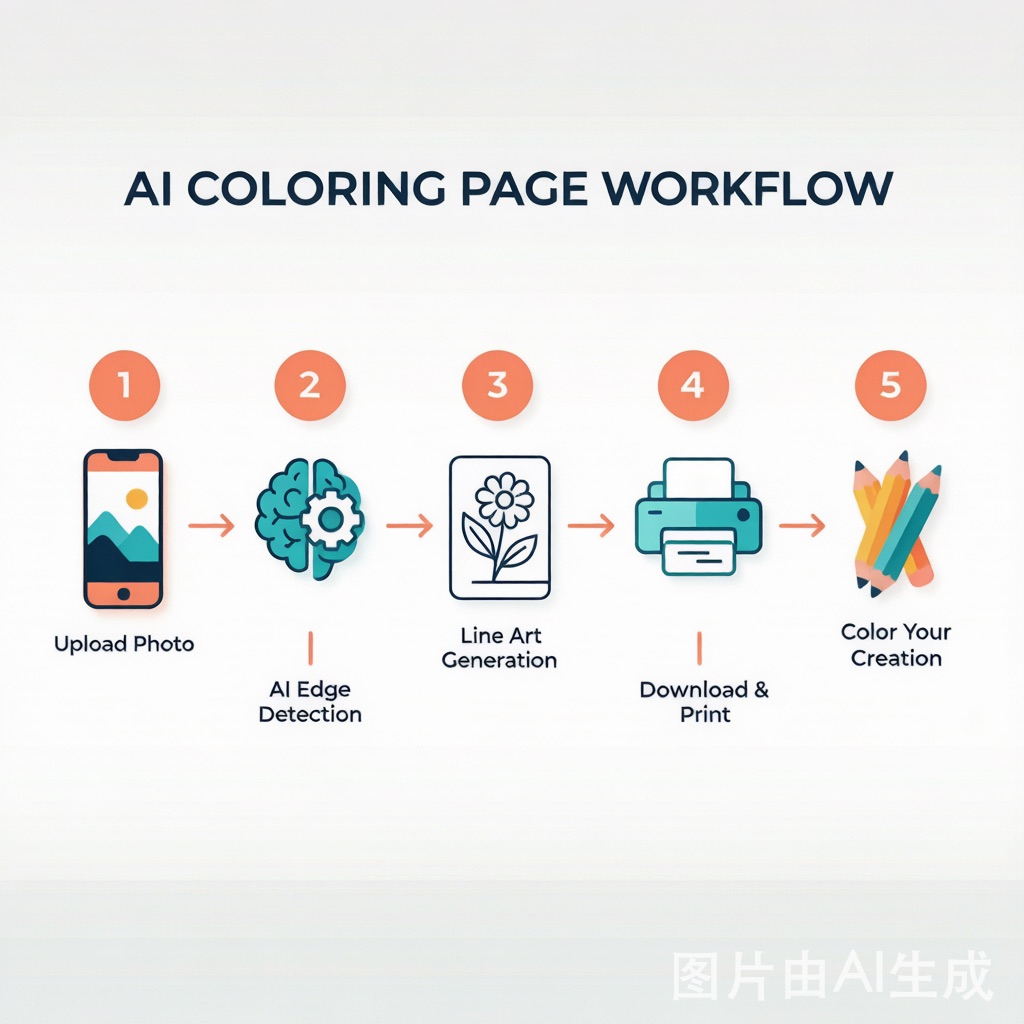
Every modern converter runs the same four-stage pipeline:
- Upload — you drop in a JPG, PNG, WEBP, or HEIC file (Mimi Panda accepts up to 20 MB).
- Edge detection — the model finds the outlines of your subject and separates them from the background.
- Shading removal — color and grey gradients are stripped so only black lines on white remain.
- Line cleanup + export — line weight is adjusted for the age of the colorist, then the page is handed back as a PNG or PDF.
The difference between a good converter and a bad one is step 3. A “sketch filter” in a photo editor leaves a washed-out grey wash that looks like a photocopy. A purpose-built converter redraws the photo as bold, print-sharp outlines — the kind you would get from an illustrator, not a filter.
The Free-Tool Comparison
Here is how the most-cited free converters stack up on the terms that matter — not feature counts, but whether the page you download is actually free to print.
| Tool | Free tier | Watermark on free output | Download format | Best for |
|---|---|---|---|---|
| Mimi Panda | 2 photos / 7 days (trial) | No | JPG/PNG/WEBP, up to 6000×6000 px | Variety of styles (anime, sketch, comic) |
| ColorBliss | 1 try credit + 12 on signup | No | PNG / PDF | Artistic styles (Manga, Minimal, Ghibli) |
| Crayola | Unlimited, no account | Yes | PNG | Zero-cost kids’ pages, brand trust |
| FotoMedley | Unlimited, email to access | No | HD PNG, 8.5×11″ | Quick free prints at home |
| Really Color | Basic, watermarked | Yes (free) | Full custom coloring books | |
| InkPages | 15 free credits + free gallery | No | Printable PNG | Your own photo + browse-ready sheets |
Tools like OpenColor, ColorArt, Fotor, and LunaPic also convert free, but read the fine print: OpenColor and ColorArt generate four variants per upload (handy for picking the best line weight), while LunaPic’s “Coloring Book” effect is powerful but manual. For a one-click result, the six in the table above are the realistic defaults.
What “Free” Really Means
This is the part most roundup posts gloss over. “Free” splits into three tiers:
- Truly free, no watermark. FotoMedley, ColorBliss (after signup), and InkPages hand you a clean HD file you can print as many times as you like. ColorBliss reports over 1.4 million pages created this way.
- Free to try, paid to keep. Mimi Panda gives a 7-day trial (2 conversions) and reserves high-resolution downloads for premium. The line art itself carries no watermark, but getting it off the site at full quality costs money.
- Free but marked. Crayola and Really Color’s free tier both embed a watermark on the output. AVC Labs’ hands-on testing flags Crayola’s output as watermarked, and Pixotter notes Really Color’s free downloads are watermarked with paid files at $2–4 each.
If your goal is a gift or a classroom handout, start with a tool from the first tier. A watermark across a finished coloring page is a dealbreaker for anyone actually coloring it.
Pick the Right Source Photo
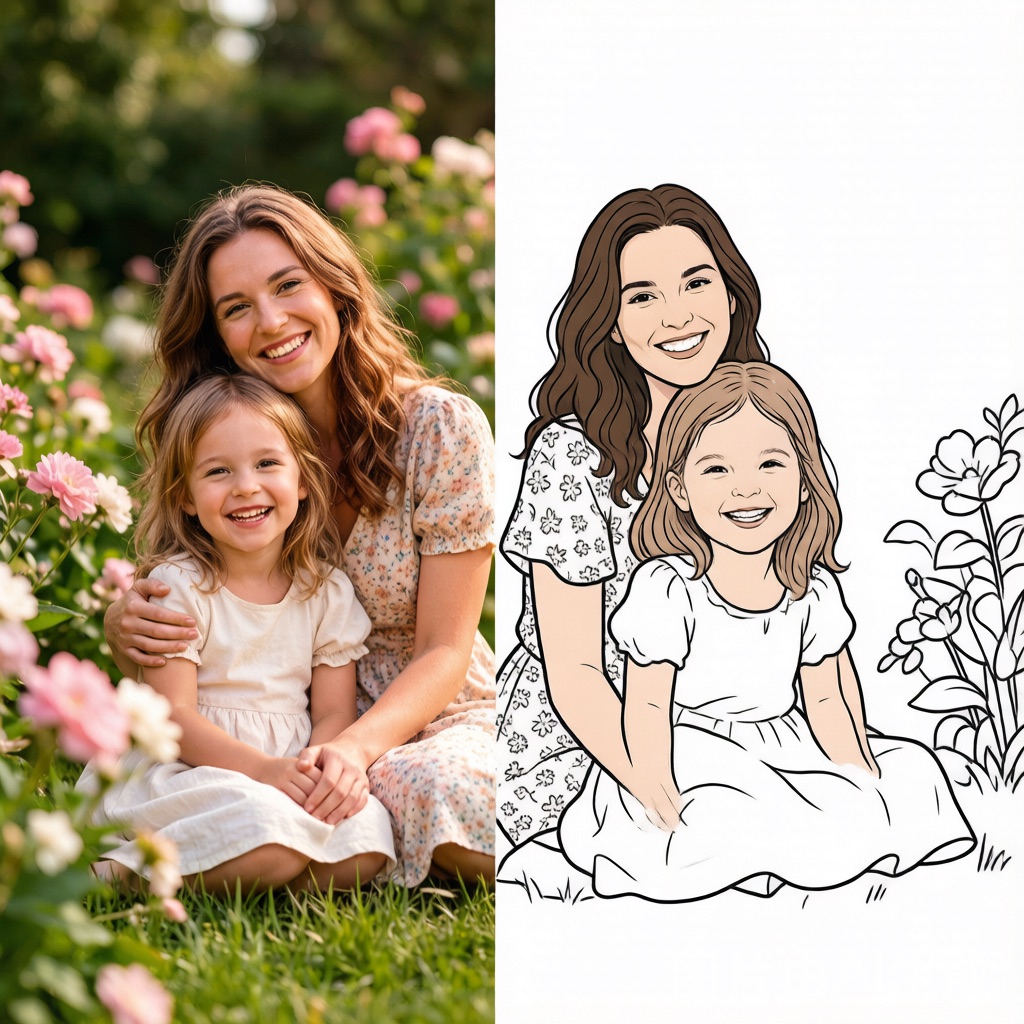
Conversion quality is 80% the photo. After testing dozens of uploads, the pattern is consistent:
- High contrast wins. A dark dog on a light couch, a white cat on a dark blanket — strong separation between subject and background produces the cleanest outlines.
- One clear subject. A single portrait or pet converts far better than a crowded group shot at a busy restaurant.
- Even light. Shoot in open shade or on an overcast day. Harsh sunlight throws confusing shadows that the model reads as edges.
- Sharp focus. Blur becomes blur. Use your phone’s portrait mode to isolate the subject — it helps the converter too.
- File size. For InkPages, keep source images under 9 MB; other free tools set their own caps, with Mimi Panda accepting up to 20 MB.
Print Resolution, by the Numbers
“High-res” is thrown around loosely, so here are the actual figures. A standard A4 or US Letter page at 300 DPI needs 2480 × 3508 pixels — that long edge of 3508 px is the real bar (this is the exact resize target in Pixotter’s open-source conversion script).
Two consequences competitors rarely state:
- A tool advertising “4K” (3840 × 2160) is wider than A4 but shorter — 2160 < 3508. So even a “4K” export gets upscaled when you print a full portrait page. Generate at the tool’s maximum and don’t assume 4K equals print-perfect.
- A tool that caps output near 1024 px will look soft the moment it fills a page. For poster-size prints you need the full 3508 px on the long edge.
Practical rule: generate at maximum resolution, then print. Use 120 gsm or heavier paper if you color with markers (per Colored by Me’s printing guide), and standard paper for crayons or pencils. The therapeutic and educational value of coloring is well documented — see the overview of coloring books’ role in learning and relaxation for the broader context.
A 5-Step Walkthrough
Using any free converter (the steps mirror InkPages’ photo tool):
- Choose a clear, high-contrast photo with one main subject.
- Open the converter in your browser — no install, no credit card.
- Upload and pick a detail level: simple for toddlers, detailed for adults.
- Preview — toggle the background off if you want a subject-only sheet, and generate up to four variants if the tool offers them.
- Download as PNG or PDF and print on Letter or A4.
If you would rather start from a ready-made design than your own photo, browse the free gallery and print immediately.
Watch the Conversion Happen
A short walkthrough of a real photo becoming a coloring page in a free browser tool:
Common Mistakes
Gathered from Reddit threads and support forums where people post failed conversions:
- Busy group photos — too many overlapping edges produce a tangle of lines.
- Dark or low-contrast images — the model can’t find a subject, so outlines come out faint.
- Expecting a filter to equal a converter — a phone “sketch” effect is not the same as redrawn line art.
- Printing a 1024 px image full-page — it upscales into mush.
- Forgetting ownership — see the copyright note below before converting someone else’s photo.
Copyright You’re Responsible For
Free to convert is not free of responsibility. Mimi Panda’s terms state you must own the rights to any photo you upload, and several free tiers restrict commercial use — Colorify, for example, limits its free tier to personal, non-commercial use only. Practical guidance:
- Personal and family photos: always fine to convert and print.
- Classroom use: fine for your own students using your own or licensed images.
- Selling the output: check the tool’s license first; free-tier pages are usually not cleared for resale.
FAQ
Can I really do this without Photoshop? Yes. A photo to coloring page without Photoshop is a one-minute, browser-based task — you turn any picture into a coloring page for free and never open an editor.
Which free tool has no watermark? FotoMedley, ColorBliss (after the free signup credits), and InkPages all deliver clean, watermark-free pages.
What paper should I print on? 120 gsm or heavier for markers; standard printer paper works for crayons and colored pencils.
Will a 4K image be sharp at A4? On width, yes — but A4’s long edge needs 3508 px, and many “4K” exports top out at 2160 px, so check the long edge before printing full-page.
Start Converting
Pick a high-contrast photo, open a free converter, and you have a printable coloring page before your coffee cools. When you want your own picture turned into a sheet, use the InkPages photo tool, or make your own from scratch if you’d rather design than upload. For printing tips once your page is ready, see our guide on how to print coloring pages at home.
Ready to color?
Browse hundreds of free printable coloring pages.